August 31, 2011

Configure Solid Edge Embedded Client to Map Teamcenter LOV and Associated LOV Description


In Teamcenter it is possible to create an interdependent LOV such that the LOV description is displayed alongside the LOV value:
 

Where such functionality would be useful is when you have a short LOV value but need to use a longer LOV description to help the end user decide if the LOV value is the correct value to be selected i.e. CAGE Codes being a perfect example of this.

August 30, 2011

Teamcenter Classes, Business Objects, Attributes and Properties Explained


For those of you new to Teamcenter concepts check out Scott Pigman’s excellent post explaining Teamcenter Classes, Business Objects, Attributes and Properties:


If you do anything Teamcenter related check out Scott’s blog, The PLM Dojo, for all kinds of good info on Teamcenter.


August 16, 2011

Installing Remote BLOB Storage (RBS) with SharePoint Foundation 2010 and Insight


When SharePoint was originally introduced all files saved to SharePoint were stored in the database as BLOBs. BLOBs are not necessarily ideal for a database if there are a lot of files stored or if the files stored have large file sizes. Unfortunately Insight data stored in SharePoint is typically of a larger file size and engineering groups typically generate a lot of these larger files. BLOBs bloat the size of the physical database files resulting in reduced database performance. Therefore Insight performance can be negatively impacted.

Thankfully Microsoft has recognized this and now provides Remote BLOB Storage (RBS) with SQL Server and SharePoint. RBS is a way to store the BLOB files outside of the database on the physical disk system itself. By moving the BLOB storage to the physical disk this in turn reduces the physical database size. Implementing RBS has the potential to improve your overall SharePoint and Insight performance.

August 12, 2011

Improving Windows 7 Performance with Disk Defragmentation


I recently received a whitepaper from Windows IT Pro/Diskeeper extolling the virtues of disk defragmentation to ensure maximum performance on Windows 7.  Used to be in the "good ol' days" of computing disk defragmentation was a housekeeping necessity to ensure maximum performance of the systems.  With the advent of faster workstations and larger hard drives some of the old housekeeping tasks we used to perform to maintain optimum performance have fallen by the wayside.  As this whitepaper clearly shows though disk defragmentation is still a necessary task to maintain your Windows performance.

Windows 7 has its own built in disk defragmentation.  It has always been well known that the Windows defragmenter has a lot of room for improvement.  Otherwise there wouldn’t be third-party defragmenters out there if the Microsoft tool was fully capable. 
   

The previously mentioned whitepaper goes on to discuss how much better the Diskeeper defragmenter is compared to the Windows offering, making statements about performance such as “While a single day of fragmentation resulted in read times that increased by 73% A week’s worth of work results in file read times that increased over 145%” and “A single day of fragmentation caused Word file read times to increase 144%, while a week’s worth of work increased that to 175%”.  Those kinds of numbers significantly add up to cause overall system performance degradation.

Now obviously with performance degradation numbers like that, if you are not running disk defragmentation on a regular basis you should be.  Even the meager Windows defragmenter is better than no defragmentation.  Or you could go out and purchase a third-party tool such as Diskeeper to maximum your defragmentation and performance improvement.  Or you could go check out the open source and free software solutions. 

The free software defragmenter I use is MyDefrag.  What I like about MyDefrag (other than the price) is that it offers several pre-built scripts for different levels of defragmentation including daily, weekly, monthly, flash and SSD optimization, etc.

   
What I particularly like those is that MyDefrag also provides a Windows screensaver so you can set your system to defrag whenever you leave your desk.


MyDefrag can be downloaded from http://www.mydefrag.com

So start defragmenting your disks today and see if your Windows 7 performance improves any.  I’m betting it does.  I’d be interested to hear your feedback on if running defrag improves your overall system performance.

July 27, 2011

Insight Pausing And Retrying Messages Causing Slow File Open?


If you are experiencing delays in opening Solid Edge files from Insight that is evident by frequent “pausing and retrying” messages in the Solid Edge session, then consider enabling SQL snapshots.  By enabling snapshots on the SQL databases you can reduce the pausing and retrying messages and greatly improve your Solid Edge open performance from Insight.  Here’s how to enable SQL snapshots:

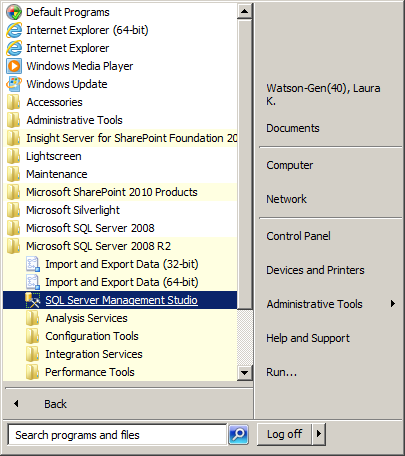
During off hours, on the SQL Server launch SQL Server Management Studio:


Select the SharePoint content database to apply snapshots to i.e. WSS_Content, right click-> Tasks -> Take Offline.  This may take several minutes to complete:


Open a New Query window:


Enter the following SQL Query where <database name> is the name of the database taken offline in the previous step:
ALTER DATABASE <database name> SET READ_COMMITTED_SNAPSHOT ON;

Execute the query:


Select the database again, right click-> Tasks -> Bring Online:


Repeat the steps above for any additional Insight/SharePoint databases being used.

This should resolve the pausing and retrying  issue and improve open performance.

You can verify if the change has successfully been made by running the following SQL Query:
SELECT sd.is_read_committed_snapshot_on FROM sys.databases AS sd WHERE sd.[name] = '<database name>';
 The value returned by this query should be “1” if snapshot was successfully turned on.  Otherwise the value will be “0” indicating snapshot is off:


You can turn snapshot back off by repeating the steps above but running the ALTER DATABASE query with OFF instead of ON:
ALTER DATABASE <database name> SET READ_COMMITTED_SNAPSHOT OFF;

July 13, 2011

Improve Solid Edge Performance by 95% On Windows 7 By Configuring Anti-Virus


I have seen instances with customers where the anti-virus software on Windows 7 is negatively impacting Solid Edge performance.  By making a few simple anti-virus configuration changes you can greatly improve your Solid Edge open and save performance.

For one customer, saving unmanaged Solid Edge files to his local hard drive was taking 90 seconds to complete.  After making these anti-virus configuration changes the Solid Edge file saves took 5 seconds.  For another customer Insight uploads were taking 600 seconds to complete.  After the anti-virus changes, the uploads took 30 seconds.  Two real world instances where configuring anti-virus improved Solid Edge performance by a whopping 95%.

Of course it should go without saying that the changes to your anti-virus configuration outlined below need to be reviewed by your company’s IT security experts.

For both unmanaged and managed Solid Edge exclude the following folders and all files underneath:
%ProgramFiles%\Solid Edge <version #>
%APPDATA%\Unigraphics Solutions
%TEMP%
If also running Insight or Solid Edge Embedded Client  (SEEC):
All http traffic to and from the server(s) and the client
If also running SEEC and Teamcenter exclude the additional folders and all files underneath:
%USERPROFILE%\Teamcenter
%USERPROFILE%\FCCCache
%TCROOT%
%TCDATA%
The above list assumes that the software and its various options are installed to the default locations.  If you have changed any of the default locations i.e. Insight cache location etc then you will need to modify your anti-virus exclusions appropriately.

And don’t forget to make these changes where appropriate to both your clients and servers.

To be clear it is not all anti-virus software on Windows 7 that I have seen have such a dramatic impact on Solid Edge performance.  There are several anti-virus software packages that seem to more negatively impact Solid Edge performance than others but I’m not going to call those vendors out by name in this post.  Regardless, whatever anti-virus software you run, making these configurations changes should still improve your Solid Edge open and save performance to some degree.

And for those of you are experiencing overall poor Windows 7 performance as a whole, not just with Solid Edge, perhaps you should consider temporarily disabling anti-virus and testing your Windows 7 performance without anti-virus in the mix.  You might find that your anti-virus is negatively impacting your overall performance as a whole and not just with Solid Edge.

Check out my previous post on tweaking Windows 7 for improved Solid Edge and Windows 7 performance.

July 12, 2011

Fixing Slow Insight Performance in Windows 7


Windows 7 has introduced a whole slew of issues centering around network performance.  One particular area that Insight customers on Windows 7 have noticed is that Insight is slow to generate and display a list of files and folders in the various dialogs that displays file lists i.e. Open, Parts Library etc.
 
There is a known issue with Windows 7 and SharePoint WebDAV performance.  SharePoint performance issues obviously in turn affect Insight’s performance.  The culprit is Internet Explorer.  The fix is quick and simple, turn off IE’s automatic proxy settings detection.

Here are the steps for turning off IE’s automatic proxy settings detection:

In Internet Explorer, open the "Tools" menu, click "Internet Options".


Select the Connections tab.


Click the "LAN Settings" button.


Uncheck the "Automatically detect settings" box.


Click "OK".


Click "OK".


    For more on this particular issue check out this Microsoft Technet discussion.

    I will be writing additional posts on Windows 7 network performance issues with Solid Edge so stay tuned.

    UPDATE: Just to clarify, even though this post focuses on Insight, you should make this tweak for Windows 7 regardless, even if you use unmanaged Solid Edge as the tweak improves *all* WebDAV performance.