A while back I had posted a script for automating the
creation of SharePoint and Insight Network Location shortcuts. Recently I had someone request the ability to
also include FTP addresses into the script.
So without any further to-do, here is an updated version of the script
that allows the automated creation of http, https, and ftp addresses for Network
Locations shortcuts.
Tips 'n tricks related to CAx and PLM software and hardware. Primary posts are about Solid Edge, Insight and Teamcenter data management but there's smatterings of other "stuff" that as a hacker I feel is handy to get your job done. I'm a Siemens PLM Software employee. All opinions posted are my own and do not represent those of my employer. If you are looking for dish commentary, not gonna happen here. This is a technical how-to get stuff done better and faster blog.
Showing posts with label Insight. Show all posts
January 29, 2013
March 07, 2012
Improving Initial First Access Time to Insight and SharePoint Folders By 98%
Are your Insight and SharePoint users complaining about how when they first try to access content from the server they are experiencing a delay? Here’s how to fix it.
February 23, 2012
Updated - Automate Creating SharePoint and Insight Network Location Shortcuts
Several months ago I posted a script for automating the creation of SharePoint and Insight Network Location shortcuts. Unfortunately that script only accounted for http addresses and failed to correctly implement https. Thanks to a Chris who commented on the original post about the oversight with https addresses. So without much ado, here is an updated version of that script which takes into account both http and https addresses.
December 15, 2011
Optimizing Insight and Teamcenter SQL Server Performance in a Virtual Environment
SQL Server Pro has a great post by Denny Cherry with seven
tips for optimizing SQL Server on the vSphere and Hyper-V virtual platforms. Given that many Insight and Teamcenter customers
are running SQL Server databases for their PLM backbone this article is a must
read:
November 02, 2011
Automate Creating SharePoint and Insight Network Location Shortcuts
UPDATE: Please note that this post has been replaced by an updated post (here) that contains a newer version of the script.
With SharePoint sometimes it is necessary to create Network Location shortcuts on the client workstation. For Solid Edge Insight this is not only necessary but also a requirement.
Sure creating three or four Network Locations is no big
deal. But what if you need to standardize
those Network Locations across all workstations and user logons? Do you really want to be manually creating
the same Network Location shortcuts for 20 user ids across 20 different workstations? Having the ability to automate the creation
of these Network Location shortcuts could certainly be a time saver.
October 28, 2011
Improving Your Insight SharePoint and Teamcenter SQL Server Performance By 460% with Index Defragmentation
Courtesy of the SQL Fool an awesome script to defragment the SQL Server indexes. This is a maintenance script and can be useful for improving your overall SQL Server performance issues.
SQL utility and maintenance scripts can be applicable for both Insight and TCX installations running SQL Server.
So does index defragmentation matter? From Microsoft SQL Server 2000 Index Defragmentation Best Practices:
"The workload performance increase realized in the small-scale environment ranged from 60 percent at the low level of fragmentation to more than 460 percent at the highest level of fragmentation. The workload performance increased realized for the large-scale environment ranged from 13 percent at the low fragmentation level to 40 percent at the medium fragmentation level."So how to use this defragmentation script?
August 16, 2011
Installing Remote BLOB Storage (RBS) with SharePoint Foundation 2010 and Insight
When SharePoint was originally introduced all files saved to SharePoint were stored in the database as BLOBs. BLOBs are not necessarily ideal for a database if there are a lot of files stored or if the files stored have large file sizes. Unfortunately Insight data stored in SharePoint is typically of a larger file size and engineering groups typically generate a lot of these larger files. BLOBs bloat the size of the physical database files resulting in reduced database performance. Therefore Insight performance can be negatively impacted.
Thankfully Microsoft has recognized this and now provides Remote BLOB Storage (RBS) with SQL Server and SharePoint. RBS is a way to store the BLOB files outside of the database on the physical disk system itself. By moving the BLOB storage to the physical disk this in turn reduces the physical database size. Implementing RBS has the potential to improve your overall SharePoint and Insight performance.
July 27, 2011
Insight Pausing And Retrying Messages Causing Slow File Open?
If you are experiencing delays in opening Solid Edge files from Insight that is evident by frequent “pausing and retrying” messages in the Solid Edge session, then consider enabling SQL snapshots. By enabling snapshots on the SQL databases you can reduce the pausing and retrying messages and greatly improve your Solid Edge open performance from Insight. Here’s how to enable SQL snapshots:
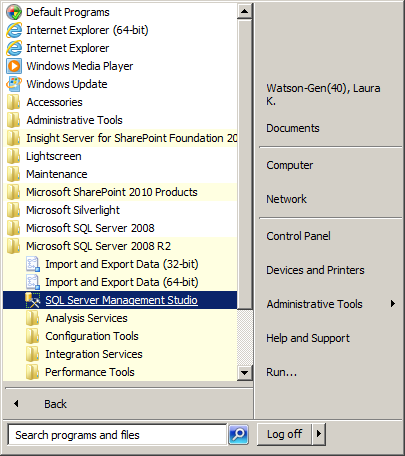
During off hours, on the SQL Server launch SQL Server Management Studio:
Select the SharePoint content database to apply snapshots to i.e. WSS_Content, right click-> Tasks -> Take Offline. This may take several minutes to complete:
Open a New Query window:
ALTER DATABASE <database name> SET READ_COMMITTED_SNAPSHOT ON;
Execute the query:
Select the database again, right click-> Tasks -> Bring Online:
Repeat the steps above for any additional Insight/SharePoint databases being used.
This should resolve the pausing and retrying issue and improve open performance.
You can verify if the change has successfully been made by running the following SQL Query:
SELECT sd.is_read_committed_snapshot_on FROM sys.databases AS sd WHERE sd.[name] = '<database name>';
The value returned by this query should be “1” if snapshot was successfully turned on. Otherwise the value will be “0” indicating snapshot is off:
ALTER DATABASE <database name> SET READ_COMMITTED_SNAPSHOT OFF;
July 13, 2011
Improve Solid Edge Performance by 95% On Windows 7 By Configuring Anti-Virus
I have seen instances with customers where the anti-virus software on Windows 7 is negatively impacting Solid Edge performance. By making a few simple anti-virus configuration changes you can greatly improve your Solid Edge open and save performance.
For one customer, saving unmanaged Solid Edge files to his local hard drive was taking 90 seconds to complete. After making these anti-virus configuration changes the Solid Edge file saves took 5 seconds. For another customer Insight uploads were taking 600 seconds to complete. After the anti-virus changes, the uploads took 30 seconds. Two real world instances where configuring anti-virus improved Solid Edge performance by a whopping 95%.
Of course it should go without saying that the changes to your anti-virus configuration outlined below need to be reviewed by your company’s IT security experts.
For both unmanaged and managed Solid Edge exclude the following folders and all files underneath:
%ProgramFiles%\Solid Edge <version #>If also running Insight or Solid Edge Embedded Client (SEEC):
%APPDATA%\Unigraphics Solutions
%TEMP%
All http traffic to and from the server(s) and the clientIf also running SEEC and Teamcenter exclude the additional folders and all files underneath:
%USERPROFILE%\TeamcenterThe above list assumes that the software and its various options are installed to the default locations. If you have changed any of the default locations i.e. Insight cache location etc then you will need to modify your anti-virus exclusions appropriately.
%USERPROFILE%\FCCCache
%TCROOT%
%TCDATA%
And don’t forget to make these changes where appropriate to both your clients and servers.
To be clear it is not all anti-virus software on Windows 7 that I have seen have such a dramatic impact on Solid Edge performance. There are several anti-virus software packages that seem to more negatively impact Solid Edge performance than others but I’m not going to call those vendors out by name in this post. Regardless, whatever anti-virus software you run, making these configurations changes should still improve your Solid Edge open and save performance to some degree.
And for those of you are experiencing overall poor Windows 7 performance as a whole, not just with Solid Edge, perhaps you should consider temporarily disabling anti-virus and testing your Windows 7 performance without anti-virus in the mix. You might find that your anti-virus is negatively impacting your overall performance as a whole and not just with Solid Edge.
Check out my previous post on tweaking Windows 7 for improved Solid Edge and Windows 7 performance.
July 12, 2011
Fixing Slow Insight Performance in Windows 7
Windows 7 has introduced a whole slew of issues centering around network performance. One particular area that Insight customers on Windows 7 have noticed is that Insight is slow to generate and display a list of files and folders in the various dialogs that displays file lists i.e. Open, Parts Library etc.
There is a known issue with Windows 7 and SharePoint WebDAV performance. SharePoint performance issues obviously in turn affect Insight’s performance. The culprit is Internet Explorer. The fix is quick and simple, turn off IE’s automatic proxy settings detection.
Here are the steps for turning off IE’s automatic proxy settings detection:
In Internet Explorer, open the "Tools" menu, click "Internet Options".
Select the Connections tab.
Click the "LAN Settings" button.
Uncheck the "Automatically detect settings" box.
Click "OK".
Click "OK".
For more on this particular issue check out this Microsoft Technet discussion.
I will be writing additional posts on Windows 7 network performance issues with Solid Edge so stay tuned.
UPDATE: Just to clarify, even though this post focuses on Insight, you should make this tweak for Windows 7 regardless, even if you use unmanaged Solid Edge as the tweak improves *all* WebDAV performance.
May 23, 2011
Opening Insight WebParts in a New Browser Window
Currently when viewing Solid Edge Insight data in the Internet Explorer dashboard, clicking the Edit dropdown menu and selecting "View Properties/Graphics/BOM", by default the WebParts page is opened in the same browser window.
By modifying the SharePoint Feature for the Edit dropdown menu it is possible to configure the Insight WebParts to open and display in a new Internet browser window. Note that depending on the browser configuration a new tab may be opened in the browser instead of a new window.
1. On the SharePoint server, locate the SEInsightContextMenu SharePoint Feature.
For WSS 3.0 the default path to the feature is:
"C:\Program Files\Common Files\Microsoft Shared\Web Server Extensions\12\TEMPLATE\FEATURES\SEInsightContextMenu"
For SPF 2010 the default path to the feature is:
"C:\Program Files\Common Files\Microsoft Shared\Web Server Extensions\14\TEMPLATE\FEATURES\SEInsightContextMenu"
2. Back up your existing "Elements.xml" file.
3. Using your text editor of choice, open the Elements.xml file for editing. Locate the first section containing "Url="javascript:function ViewBOM()":
4. Within this section locate the line containing "window.location.href=".
5. Change this string from:
window.location.href='http://your_server/SEDoclib/SE_WebParts.aspx?SEURL='+rootSiteUrl+'{ItemUrl}';To:
window.open('http://your_server/SEDoclib/SE_WebParts.aspx?SEURL='+rootSiteUrl+'{ItemUrl}');
Note obviously that your http address will be different from the above example. Also pay attention to the formatting of the "window.open" string and note that there is a closing parenthesis at the end of the line before the semi-colon.
6. There are a total of eight "Url="javascript:function ViewBOM()" sections that you will need to make the above "window.open" change to.
7. Save the Elements.xml file.
8. Restart IIS by performing an "iisreset" in a DOS Command Prompt window.
Now when clicking the Edit dropdown menu and selecting "View Properties/Graphics/BOM" the WebParts page will be opened in a new browser window or tab.
Subscribe to:
Posts (Atom)